Are you tired of juggling scattered notes, endless tabs, and messy lists just to keep track of your books? Imagine having a single, organized space where you can manage your entire reading collection with ease.
Creating a bookshelf in Notion can do just that—and more. In this guide, you’ll discover simple steps to build a personalized, easy-to-use bookshelf that fits your style and needs. Ready to turn your reading chaos into clarity? Let’s dive in and make your perfect Notion bookshelf together.
Choosing The Right Notion Template
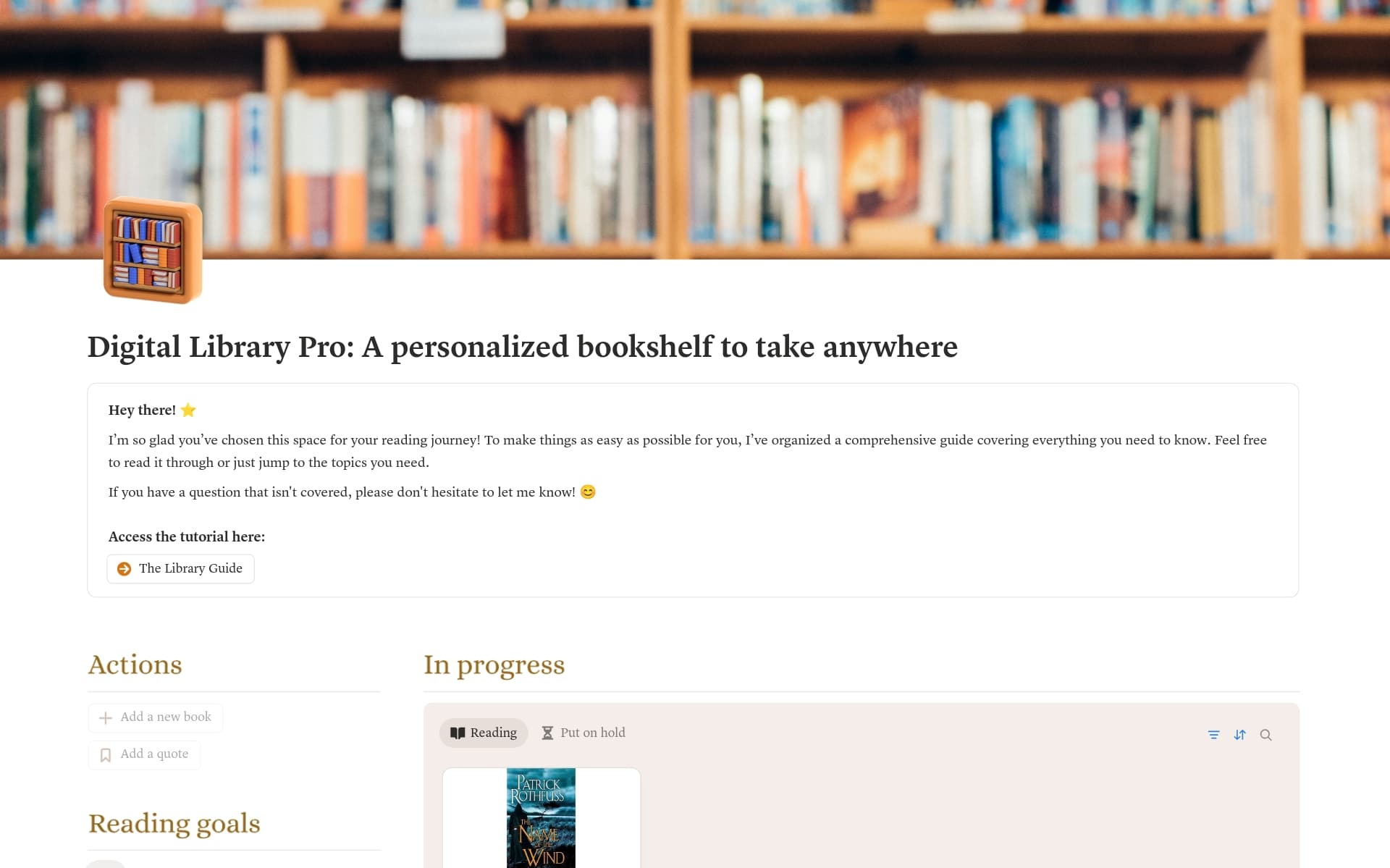
Choosing the right Notion template is important for creating a useful bookshelf. A good template saves time and keeps your books organized. It also helps you track reading progress easily. The right template fits your style and needs. This makes managing your books simple and fun.
Template Options For Bookshelves
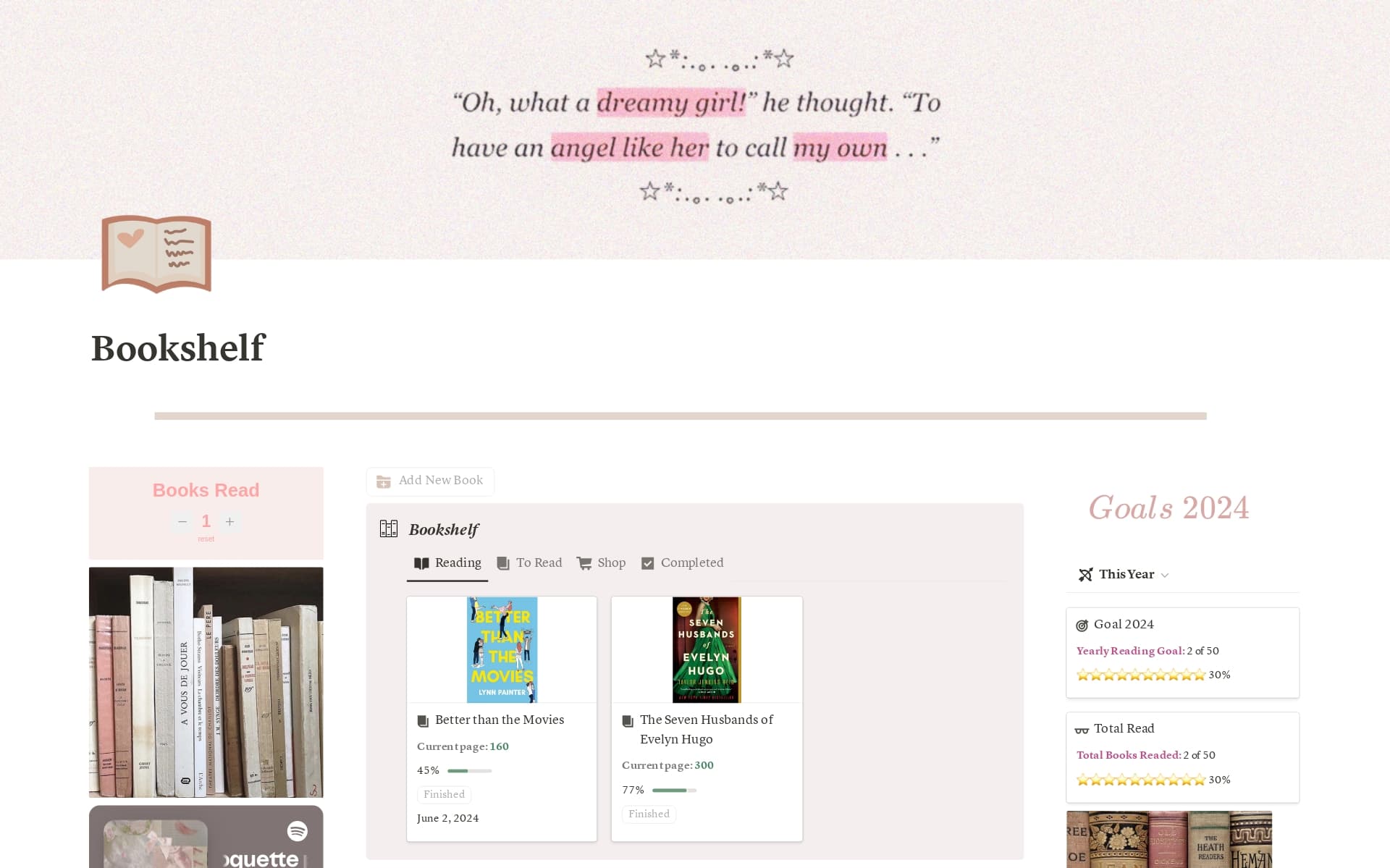
Notion offers many templates for bookshelves. Some are simple lists. Others include categories like genre or author. Some templates track reading status, like “to read” or “finished.” You can find templates for personal or academic books. Pick one that matches how you want to organize your collection.
Customizing Templates To Fit Your Needs
Templates are easy to change in Notion. You can add or remove columns. Change labels to match your reading habits. Add notes or ratings for each book. Customize views to see lists, tables, or boards. Adjust the template until it feels right for you. This makes your bookshelf clear and useful every day.
Credit: www.notion.com
Setting Up Your Bookshelf Database
Setting up your bookshelf database in Notion is an important step. It helps you organize your books clearly and efficiently. A well-structured database makes it easy to find any book. It also keeps track of important details about each book. Follow these steps to create a simple and useful bookshelf.
Creating Pages And Entries
Start by creating a new database in Notion. Use the table format for easy viewing. Each row in the table will be a page for a book. Click “New” to add a book entry. This opens a new page where you can add more details. Keep entries short but descriptive.
Adding Key Properties Like Title And Author
Every book needs a title and author. Add these as properties in your database. Use the “Title” property for the book name. Add a text property for the author’s name. These details help you identify books quickly. You can also add other properties later.
Incorporating Tags And Categories
Tags and categories help sort books by type or genre. Add a multi-select property for tags. Include genres like fiction, history, or science. Categories can be broader, such as “Read” or “To Read.” This system helps filter and find books fast. It keeps your shelf neat and organized.
Organizing With Views And Filters
Organizing your Notion bookshelf helps you find books fast. Using views and filters makes your collection clear and neat. You can see your books in different styles. Filters show only the books you want. This saves time and keeps your shelf tidy.
Using Table, Gallery, And List Views
Table view shows your books in rows and columns. You can see details like title, author, and status. It looks like a spreadsheet and is good for quick edits.
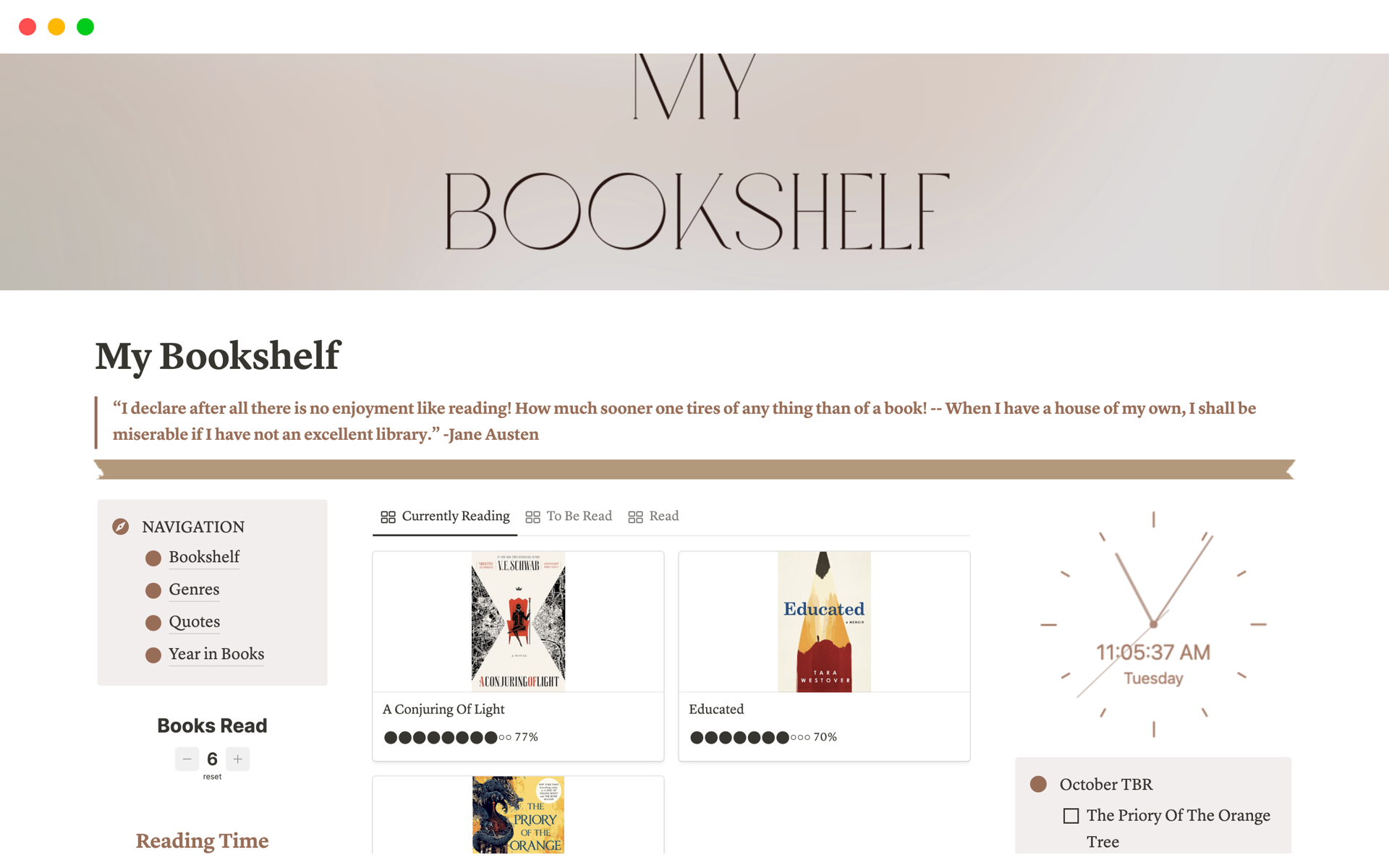
Gallery view displays books as cards with cover images. This view is perfect if you like to see book covers. It makes browsing your collection fun and visual.
List view shows books in a simple list. It is easy to scan and scroll. You see titles and some details in a clean, compact form.
Applying Filters For Better Sorting
Filters help show only the books you want to see. You can filter by author, genre, or reading status. For example, show only unread books or only fiction titles.
Filters keep your bookshelf focused and easy to use. They hide books that do not fit your current need. This way, you avoid clutter and find books faster.
Credit: www.notion.com
Integrating Reading Status And Notes
Integrating reading status and notes in your Notion bookshelf keeps your book list clear and useful. This setup helps track what you read and remember important details. Organizing your books with status tags and notes improves your reading habits. It also makes your digital bookshelf more interactive and personalized.
Tracking Progress With Status Tags
Status tags show your reading progress at a glance. Use tags like “To Read,” “Reading,” or “Finished.” These simple labels help you sort and focus on books by their reading stage. Change tags as you move through each book. It keeps your list fresh and updated without hassle.
Adding Personal Notes And Highlights
Notes capture your thoughts and key points from each book. Use a separate section to jot down quotes or ideas. Highlight passages that stand out. This practice deepens your understanding and makes your bookshelf a learning tool. Review notes anytime to refresh your memory quickly.
Enhancing With Covers And Icons
Enhancing your Notion bookshelf with covers and icons makes it easier to use and pleasing to see. Visual elements help you spot books quickly and add style to your pages. They bring life to a simple list and make your workspace more inviting.
Selecting Covers For Visual Appeal
Choose covers that match the book’s theme or mood. Bright, clear images catch the eye and create a neat look. You can use book covers from online sources or upload your own photos. Keep the style consistent to maintain a clean, organized feel. A good cover helps you remember the book at a glance.
Using Icons For Quick Identification
Icons add a small but useful visual cue next to each title. Pick icons that represent the genre or subject of the book. For example, a lightbulb for ideas or a globe for travel books. Icons save time by letting you scan your shelf faster. They make your list lively and easier to navigate.
Sharing And Collaborating On Your Bookshelf
Sharing your bookshelf on Notion lets you enjoy books with others. Collaboration makes reading more fun and interactive. You can exchange ideas, suggest new books, and keep track of group reads. Setting up sharing options is simple and helps control who can see or edit your shelf.
Setting Permissions
Notion allows you to set specific permissions for each person. You can let others view your bookshelf only. Or, you can give permission to edit and add books. This way, your shelf stays organized and secure. Control who can make changes and who can only read.
Inviting Friends And Book Clubs
Invite friends or book club members to join your Notion bookshelf. Use their email addresses to send invitations. They will get access to your collection quickly. Group reading becomes easier with shared notes and updates. Everyone stays connected and involved in your reading journey.
Maintaining And Updating Your Bookshelf
Maintaining and updating your Notion bookshelf keeps your reading list fresh and organized. It helps track books you want to read and those you have finished. Regular updates make your bookshelf more useful and enjoyable. It also keeps you motivated to read more and discover new titles.
Regularly Adding New Books
Add new books to your Notion bookshelf as soon as you find them. This keeps your list current and ready for future reading. Include details like the author, genre, and a brief note about the book. It helps you remember why you chose it. Updating your list often prevents it from getting outdated or cluttered.
Archiving Finished Reads
Move books you have finished to an archive section in Notion. This clears your active list and shows your reading progress. You can add notes or reviews about the book here. Archiving keeps your bookshelf neat and lets you reflect on past reads. It also helps plan what to read next.
Credit: www.notion.com
Frequently Asked Questions
What Is A Bookshelf Notion And Its Main Purpose?
A Bookshelf Notion is a digital organizer for books within Notion. It helps users track, manage, and organize their reading lists efficiently. This tool improves reading habits by keeping all book details in one accessible place.
How Do I Create A Bookshelf Notion From Scratch?
Start by opening a new Notion page. Add a database or table to list books. Include columns for title, author, status, and notes. Customize properties to fit your reading preferences and track progress easily.
What Features Should A Bookshelf Notion Include?
Include book title, author, genre, reading status, and notes. Add rating and date finished for better tracking. Using filters and sorting helps organize books by priority or category effectively.
Can I Customize My Bookshelf Notion For Different Genres?
Yes, you can create separate views or categories by genre. Use tags or select properties to filter books by genre. This customization helps organize and access books based on your reading interests.
Conclusion
Creating a bookshelf in Notion helps organize your reading list clearly. You can add books, notes, and ideas all in one place. This method saves time and keeps your goals in sight. Try customizing your shelf to fit your style and needs.
Enjoy tracking your progress and sharing your favorites easily. Start today and see how simple managing books can be.